
Armada Quant EA
Forex Portfolio Trader
Expert Advisor for MetaTrader 5
One EA trades 11 forex pairs from one MetaTrader 5 chart. Try it FREE first.
Built-in Drawdown Filter watches each pair on its own. It exits a falling pair, keeps the other ten trading, then re-enters that pair once its fall has shrunk back under half the exit level and its trend turns up.
95.9% of positions closed with a gain
17+ year analysis at a fixed size (16,665 positions).
Hypothetical performance: see the statement below.
The free demo is the same EA you’ll buy after you’ve tested it and liked what you saw. It runs in your own Strategy Tester on your broker’s data and spreads, and costs nothing. Sold only on the MQL5 Market.
More than 17 years of simulated testing on MetaQuotes data · cross-checked on Alpari and FXTM data · shown with the Drawdown Filter ON and OFF
Six currencies · eleven pairs · one account
What makes it different
Built to trade eleven pairs as one disciplined portfolio.
One EA, one chart, eleven pairs
Attach it to one chart and it trades all eleven pairs from there, in one account.
It finds each pair under your broker’s own symbol name and adds it to MetaTrader 5’s Market Watch itself.
No eleven charts, no eleven setups, no eleven things to get wrong.
No lot sizes to work out
Type the money you want it to trade with, or leave it at 0 and it uses your full account balance to trade with.
No risk percent to pick, no “set file” to load.
The panel on your chart shows the smallest account your broker allows for trading at the tested proportions.
A Drawdown Filter on each pair
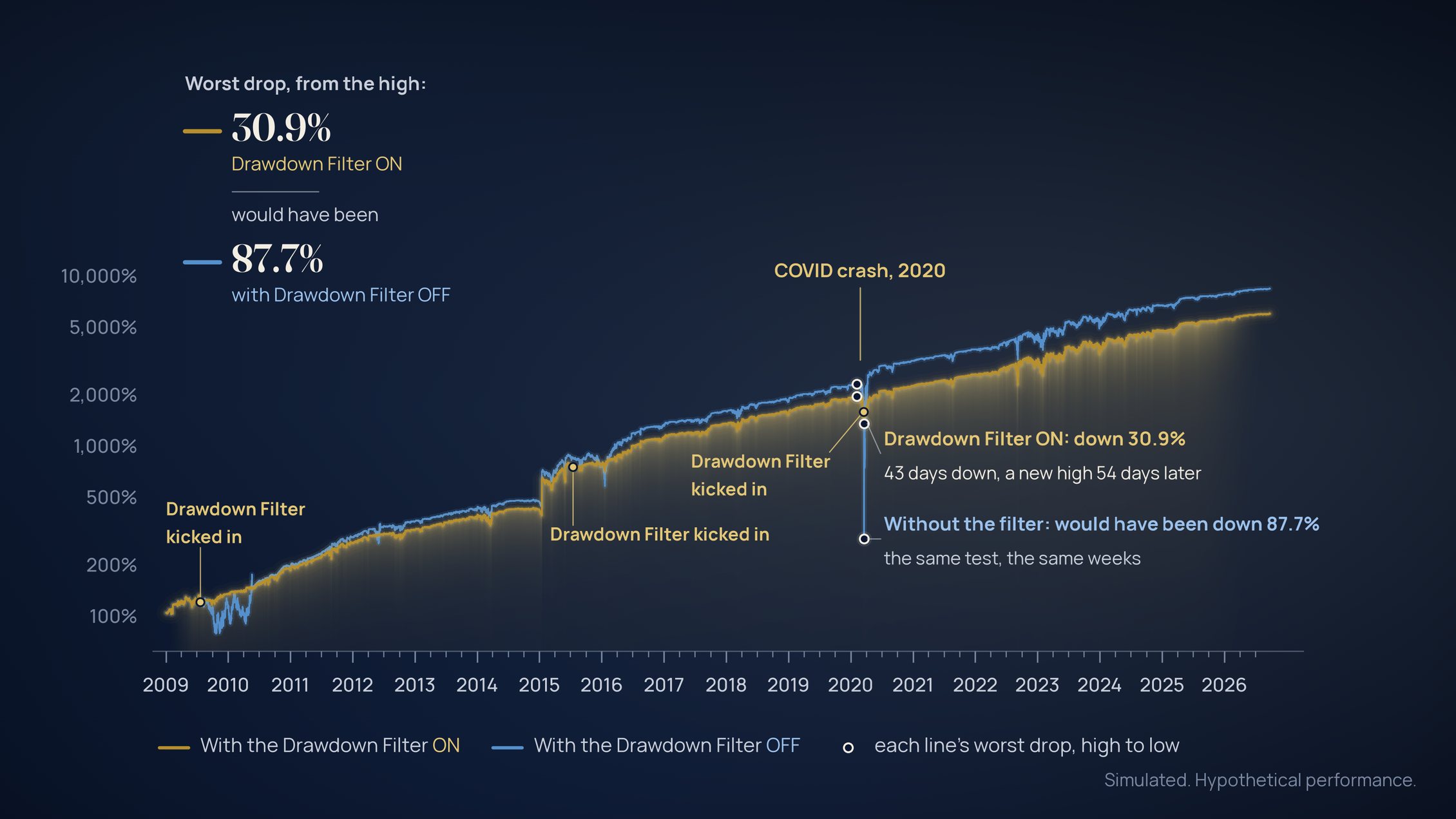
Without it, the worst drop in the 17+ year test would have been 87.7% from the high. With it ON, it was 30.9%.
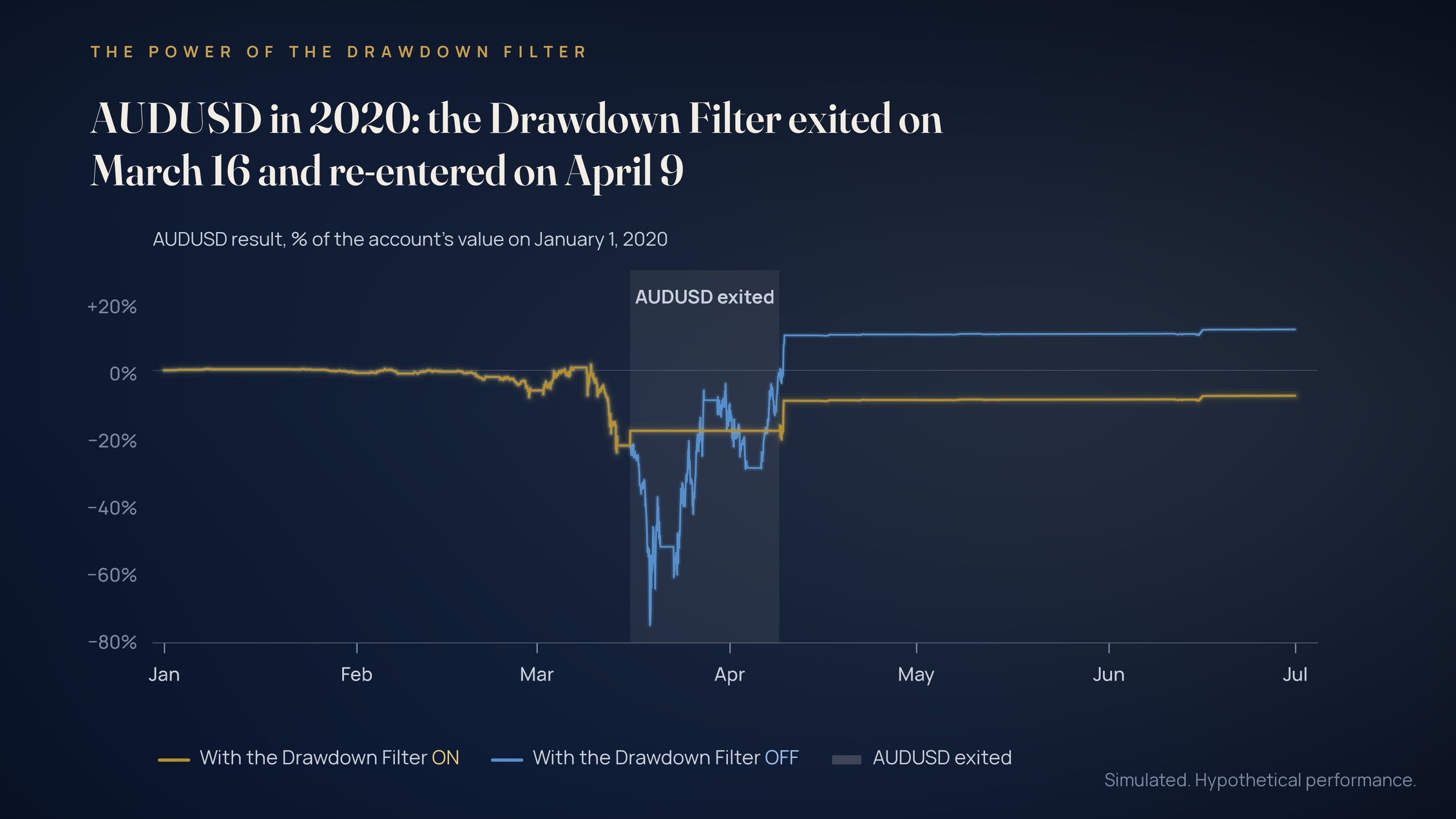
In the 2020 COVID crash it exited one pair’s total position, AUDUSD, on March 16 while the other ten kept trading, and re-entered AUDUSD on April 9.
It watches every pair this way, each on its own, automatically.
Compounding you control
At the default 100%, every closed result, win or loss, goes into the money new positions are sized from, so sizes grow after gains and shrink after losses, automatically.
You set the input parameter to choose how much compounds, from 0 to 100%.
A loss limit, if you want one
One stop for the whole portfolio, if you want it: set a loss limit in percent of Capital, plus the profits compounding has added.
When its combined profit and loss on all eleven pairs, open positions included, falls that far below the highest point its closed trades reached, it closes every position and opens nothing new until you set a new limit.
Off by default, and off in every result on this page.
Built for real accounts
Before every decision it re-reads its positions from your account, so it acts on what the account really holds.
It retries an order your broker briefly refuses because of a glitch, and if your broker’s reply to an order gets lost, it checks the account instead of sending the order twice.
If a second copy of Armada Quant with the same magic number runs on the same account, both stop opening and adding until you remove one and restart the other.
The panel shows the money it sizes trades from, the trade size it uses and each pair’s current state. Phone notifications are optional, so you can keep track when you’re away from the computer.
CFTC Rule 4.41(b) statement applies to every figure in this section and to the figure in the hero above. The full statement is located at the bottom of this page.
The 17+ year test
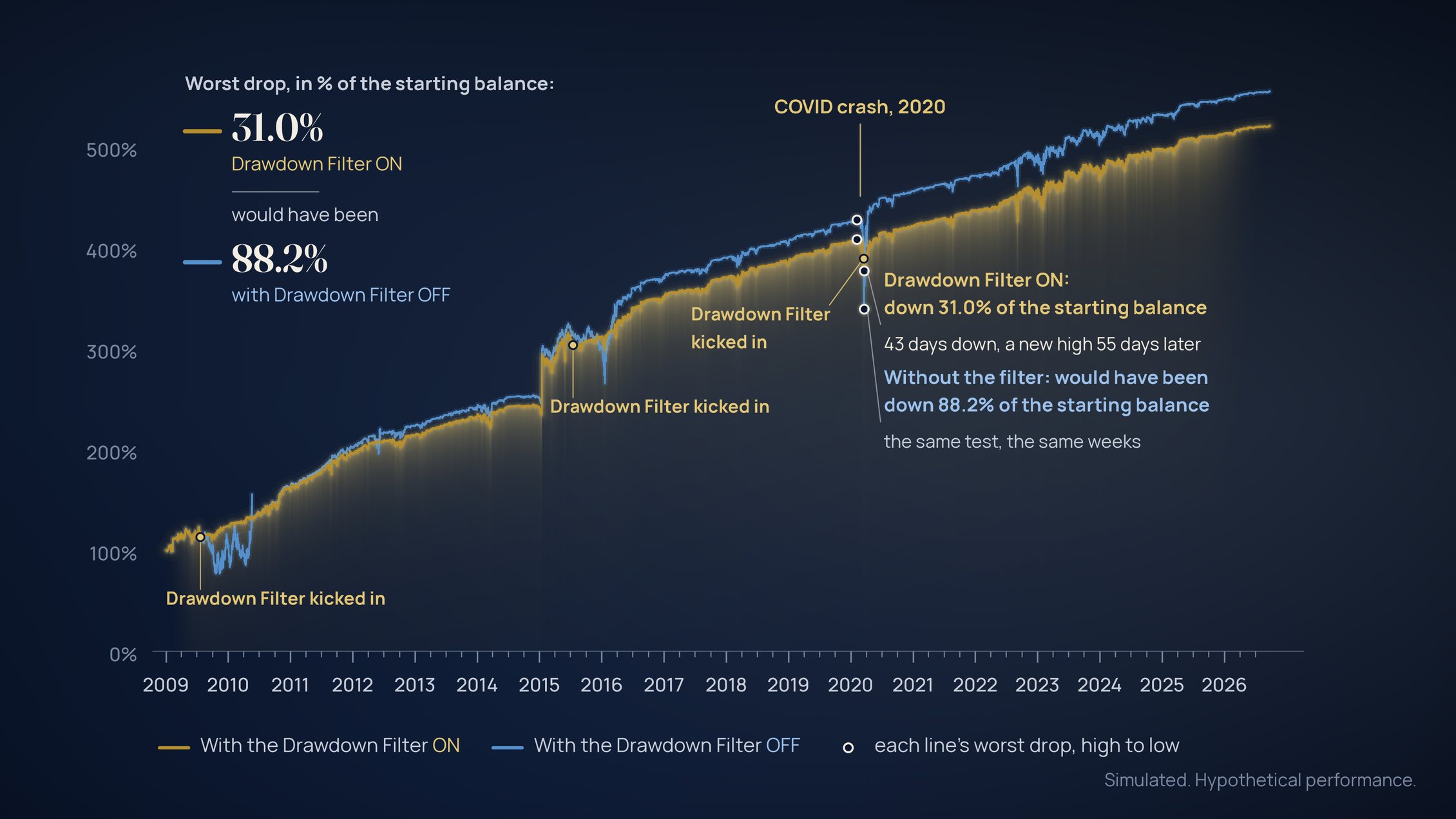
The same 17+ year test, with the Drawdown Filter ON and with it OFF.
Armada Quant · simulated results: with the Drawdown Filter ON, and with it OFF
Armada Quant in the MetaTrader 5 Strategy Tester on MetaQuotes data, January 1, 2009 to September 25, 2026: all eleven pairs traded together as one account at the default settings, marked hourly, in % of the starting balance (compounding 100%, log scale), the same test with the Drawdown Filter ON (level 10) and OFF.
Armada Quant in the MetaTrader 5 Strategy Tester on MetaQuotes data, January 1, 2009 to September 25, 2026: all eleven pairs traded together as one account at a fixed size (without compounding), marked hourly, in percent of the starting balance, the same test with the Drawdown Filter ON (level 10) and OFF.
The Drawdown Filter
One filter on each pair. It acted three times in 17+ years, during extreme market conditions.
Every buyer of an EA whose strategy is to add to losing positions fears one thing: a pair that keeps adding into a crash.
Here’s what Armada Quant did instead...
The Drawdown Filter watches each pair’s result individually, open positions included.
It decides once a day. A pair exits when two things are true: it has fallen about 17.6% of the Capital you trade with below its high (at the default setting), and its trend reads down.
The Drawdown Filter then closes that pair’s positions at the next hourly open and stops trading it, while the other pairs keep trading as usual. It keeps tracking the positions that it would have been in had the Drawdown Filter not been engaged.
When the pair’s drop is back under half that amount and its trend reads up again, it re-enters the entire position, including the trades it would have added while it was out.
It is not a stop loss on each trade and not a stop on the whole account: it is one filter per pair, and it runs automatically inside the portfolio.
How often it acted
In the 17+ year test on MetaQuotes data the Drawdown Filter acted three times: AUDUSD stepped out from July 2009 to September 2012, USDCAD from July 2015 to March 2016, and AUDUSD from March 16 to April 9, 2020. The other nine pairs never stepped out.
The trade-off
The filter costs return, and we show it. The average yearly return was 27.3% with it ON and 30.4% with it OFF (2009–2025).
That is the trade-off: you give up some return to cut drawdowns by approximately two to three times.
Checked on multiple broker feeds
In addition to the MetaQuotes data shown on this page, we checked it on Alpari and FXTM broker price data, for an account started in January 2011.
Different brokers have different data feeds, and results can vary on that basis.
Year by year (full calendar years)
+27.3%
Average yearly return
(2009–2025, compounding 100%)
No full calendar year lost money in the test (2009–2025) on MetaQuotes data.
The gold-colored numbers demonstrate return with compounding at 100%, on the account’s value at the start of each year.
The light gray numbers represent fixed-size trading without compounding, in percent of the starting balance.
| Year | Return | Fixed size |
|---|---|---|
| 2009 | +29.5% | +24.3% |
| 2010 | +38.9% | +35.8% |
| 2011 | +43.5% | +36.1% |
| 2012 | +18.9% | +17.4% |
| 2013 | +18.3% | +17.5% |
| 2014 | +10.5% | +10.1% |
| 2015 | +84.9% | +70.4% |
| 2016 | +42.5% | +38.2% |
| 2017 | +22.5% | +20.7% |
| 2018 | +13.1% | +12.4% |
| 2019 | +25.3% | +23.2% |
| 2020 | +17.6% | +15.5% |
| 2021 | +16.8% | +15.4% |
| 2022 | +13.9% | +13.6% |
| 2023 | +20.8% | +20.2% |
| 2024 | +31.5% | +26.5% |
| 2025 | +16.5% | +15.6% |
More detailed results and how they were measured
Data distinctions from broker to broker
Results on your broker will differ: price data, spreads, swap, the server clock and its rollover spreads differ between brokers.
Other periods, including ones not tested here, can produce a much larger drawdown than shown.
Compounding also makes the drops larger in money. So run the free demo on your own broker’s data before you decide.
Run the same way from January 2011 (compounding 100%), the test averaged 26.2% a year over 2011–2025 on MetaQuotes data, 22.9% on Alpari data and 20.7% on FXTM data.
A large part of that gap is swap: those two brokers charge far more of it.
On other brokers’ data, FXTM data lost 2.6% in 2023, and 2026 so far is down 3.6% on Alpari data and 3.3% on FXTM data.
The worst drop depends on when you start: in test runs started on eight dates from January 2010 to February 2020, the COVID drop was 10.0% to 33.2% of the account’s value at its high on MetaQuotes data, largest for a start on November 1, 2019; on FXTM data, for starts between November 2019 and February 2020, 12.1% to 34.3%. All eight runs on MetaQuotes data ended 2020 above their starting balance.
How to read these figures
Returns are in percent of the account’s value at the start of each year, drops in percent of its value at the high, and figures at a fixed size in percent of the starting balance. The average yearly return is the average of the seventeen full-year returns in the table.
Defaults: compounding 100%, the Drawdown Filter ON at level 10. Hypothetical performance. Past results, on any feed, are not indicative of future results.
More detail: the fixed-size run, compounding, real ticks and swap
Without compounding. Run at a fixed size, the average full-year gain was 24.3% with the Drawdown Filter ON and 26.3% with it OFF (2009–2025), and the worst drop was 31.0% and 88.2% of the starting balance; at a fixed size, the nine pairs the filter never exited traded exactly as they would have with it OFF. Figures at a fixed size (without compounding) are in percent of the starting balance.
With compounding. At the default 100%, the account ended at 5,719% of its starting balance after 17.7 years; at a fixed size it ended at 520%.
With compounding at 100% from January 2011, the account ended at 3,035% of its starting balance on MetaQuotes data, 1,881% on Alpari data and 1,480% on FXTM data.
Real ticks. The test used the model “Open prices only”. Run at a fixed size with “Every tick based on real ticks” from September 2024 to September 2026, the net result changed by −1.5% (−25.0% to +6.2% per pair) and the worst drop by +1.9%. To repeat these results in your own tester, use “Open prices only”; “1 minute OHLC” does not repeat them exactly.
Swap matters to the comparison. The test ran on MetaQuotes data, and the same EA also ran on Alpari and FXTM price data. The test’s swap was far lower than Alpari’s and FXTM’s. Run the same way at a fixed size from January 2011 to September 2026, MetaQuotes data charged swap of 0.5% of the starting balance a year; Alpari and FXTM data charged 3.3% and 3.5% a year (each broker’s current swap rates, which the Strategy Tester applies to the whole period). The average yearly gain over 2011–2025 was 23.9% on MetaQuotes data and 20.1% and 18.4% on theirs. These comparisons are simulated, like the test results, and the same hypothetical-performance statement applies to them. Figures at a fixed size (without compounding) are in percent of the starting balance.
CFTC Rule 4.41(b) statement applies to every figure in this section. The full statement is located at the bottom of this page.
The charts
Every number comes from the EA you’ll download.
Any seller can show you a curve. Here are the facts behind Armada Quant’s, and the free demo lets you check every one of them yourself.
Default settings
The EA you’ll download
Every result on this page comes from Strategy Tester runs of the exact EA you’ll download. No special build, no tuned set file, no version you cannot get.
16,668 positions
Every one on the record
Every pair chart below is drawn from that record, at the bar and the price where each trade happened. Nothing is redrawn to look better.
17+ years
Cross-checked on two more brokers’ data
Not one data feed, three: the same EA also ran on Alpari and FXTM price data from January 2011, and their lower results stand beside ours on this page.
Every pair, on its own chart
Gold-colored arrow up, it bought. Blue arrow down, it sold. Open diamond, it closed the position. The small white dot on each marker is the exact fill price, and the thread joins an entry to the close that ended it. Every arrow and every diamond sits on the bar and at the price where the trade happened, so you see exactly how it trades, pair by pair.


CFTC Rule 4.41(b) statement applies to every figure in this section. The full statement is located at the bottom of this page.
Why this exists
You already know the usual problems. Here’s our answer to each.
You have likely lived through at least one of these. Armada Quant was built with all four in mind...
01
“It worked in the tester. It died on my broker.”
The curve was fitted to a feed you never saw. Your spreads were wider. Your swap was worse. By week three the edge was gone and nobody would tell you why.
Our answer: we name the data the test ran on, MetaQuotes, and we ran the same EA on Alpari and FXTM price data too, with their lower numbers beside ours, swap gap and all.
Your broker will differ again: because the EA adds to positions that have moved against it, one different hourly bar can change when it adds or closes.
So run the free demo on your own broker’s data before you pay anything.
02
“It kept adding, and then it blew up the account.”
You have read that thread. The trade goes against it, so it opens another position. Then another. Nobody ever says where it stops, because for some of them, it doesn’t!
Our answer: it adds only when price has moved far enough against the position and its signal fires again, averaging into the position (dollar cost averaging, or DCA), and each add is normally larger than the one before.
In our simulated 17+ year analysis, 84% of positions were in and out with no add at all. The deepest one added 15 times (19 on Alpari data).
On top of that, every pair has the Drawdown Filter you just read about, plus you can set a loss limit for the whole portfolio.
03
“Forty inputs, and no idea which ones were tested, or how to set them.”
Turn one knob and the backtest no longer describes the thing you’re running.
Our answer: one input to set, Capital, and you can leave it at 0 to use your full account balance.
Every other input comes preset at the tested values, the loss limit and phone notifications are off, and the advanced ones sit in a group marked “leave as tested”. The rules that decide when it buys, sells and closes are fixed inside the EA.
What you test in the demo is what you run: the same rules, the same defaults. And if you want to fine-tune it your way, every input is yours to change; changed values are simply no longer the tested ones.
04
“After the sale, the seller went quiet.”
Answers in minutes while you are deciding. Then the replies stop, and you are alone with a file you cannot read.
Our answer: every buyer can post on the product’s comment thread on the MQL5 Market, in the open, where everyone sees the question and the answer, or message us on MQL5; we aim to reply within 24 hours.
A step-by-step setup manual is on our MQL5 blog. There is no private group to join and nothing behind a door.
None of this gets settled by reading more reviews. It gets settled by running the EA on your own broker’s data and watching what it does. That’s why we give you the free demo.
CFTC Rule 4.41(b) statement applies to every figure in this section. The full statement is located at the bottom of this page.
How it works
Set it up in a minute.
Three steps, one number to type, and Armada Quant trades all eleven pairs on its own...
Attach it to one chart
Drag it onto any one-hour (H1) chart; EURUSD H1 is a good choice. It trades all eleven pairs from there, in one account. It finds them under your broker’s own names, prefixes and suffixes included, and adds them to MetaTrader 5’s Market Watch for you. See the eleven pairs listed further down this page.
Type in the amount of capital you want it to trade with
That is the input called Capital, in your account’s currency. Leave it at 0 and it trades with your full account balance. It sizes all eleven pairs from that, in the proportions our analysis used.
Tick “Allow Algo Trading” on the Common tab, leave every other input at its default (you can change them, but you don’t need to), and click OK.
Let it run!
Switch Algo Trading on in the toolbar and keep MetaTrader 5 running, on a computer that stays on or a VPS.
It decides once an hour per pair, so the first positions can take hours or days to appear. It trades both directions, long and short.
The panel on the chart shows what it is doing: the money it sizes from, the size each new position gets, and each pair’s state.
What you’ll see

The Inputs tab, as it opens.
Capital sits at the top.
Everything else is already set.

The panel on your chart. What it sizes from, the size each new position gets, the smallest account your broker allows at the tested proportions, and each pair’s state.
Flat, long, short, or out since the day the Drawdown Filter exited it. An example of the panel on a $5,775 account at a broker with contract size 10,000, at the default settings.
Three controls you can adjust while Armada Quant is trading
When ready to close out the portfolio
“Open new positions (No = finish)”
Ready to exit all positions properly? Set this to “No” and let it close out by its own rules.
Armada Quant opens nothing new, but keeps managing what is already open, dollar cost averaging adds included.
Every risk control stays on while it winds down: the Drawdown Filter, your loss limit and the stop after a set number of entries. A pair the Drawdown Filter has exited stays out.
When every pair on the panel reads “flat” or “out since”, every position has closed and you can take it off the chart.
One loss limit for the whole portfolio
“Loss limit, % of Capital (0 = off)”
Want a hard stop under the whole portfolio? Enter a percentage of your allocated Capital.
Armada Quant watches its combined result across the entire portfolio, open positions included, every second while MetaTrader runs. When that result falls your chosen percent of Capital below the highest point its closed trades reached, it closes every position on every pair it trades, at market prices, and stops opening and adding. That percent is taken of the money it sized trades from at that highest point: Capital, plus the closed profits compounding had added.
After a hard stop it stays on the chart, opens nothing, and the panel shows the date it stopped. To trade again, enter a different loss limit: every pair then starts fresh.
The EA can send an alert notification to your phone.
“Phone notifications”
Know the moment something changes, wherever you are.
Off by default. Switch it on and the MetaTrader app on your phone gets an alert when the Drawdown Filter exits a pair or re-enters it, when the loss limit closes all positions, or if another copy of the EA with the same magic number trades the account.
It uses only MetaTrader’s built-in notification service; enter your MetaQuotes ID under Tools, Options, Notifications.
When the market moves against a position
Most positions never need an add:
84% of them, in our simulated 17+ year analysis, were a single trade from open to close.
When price moves far enough against an open position and its signal fires again, Armada Quant may add a trade in the same direction: its built-in dollar cost averaging.
Each add is normally larger than the one before, so the position and the margin it uses grow.
The deepest position in the 17+ year analysis added 15 times (19 on Alpari data).
How a position closes:
Armada Quant exits the whole position in that pair at once, at an hourly close, when the position is in profit and its exit signal fires.
What that means for your account:
Until then, Armada Quant holds the position and may add to it. The open drawdown can grow, and a position can stay open until its exit comes.
Your Capital setting is the key lever. A smaller Capital means smaller positions and smaller drawdowns in money.
95.9% of positions closed with a gain. Here’s the other side of that number.
In our simulated 17+ year analysis at a fixed size, 95.9% of 16,665 positions closed with a gain. The three largest losses were 18.1%, 17.7% and 17.6% of the starting balance, all three closed by the Drawdown Filter. A high share of winning positions does not mean low risk.
Explore the historical risk analysis
Positions that closed profitable (fixed size). 95.9% of the 16,665 positions in the 17+ year test; 94.6% on Alpari data and 93.9% on FXTM data.
Risk controls and their limits. The stop after 100 entries (“Stop loss after N entries (0 = off)”) never fired in the test. The loss limit is off by default and is not part of the published results. No stop loss is placed on individual trades.
Several pairs can be in drawdown at the same time. With compounding on, every pair’s new positions are sized from the whole account’s closed results. Your broker’s margin rules still apply: a margin call closes positions whatever the EA intends.
Holding periods. The longest hold in the 17+ year test was 383 days (a EURCHF short, July 2020 to July 2021). On Alpari and FXTM data a EURCHF short was held 643 days (August 2011 to May 2013), until the Drawdown Filter exited it.
Keep in mind: while that EURCHF short was open, the other ten pairs kept trading, and together they closed 1,166 positions for 15.4% of the starting balance in profit over those 383 days (fixed size). That is the point of trading eleven pairs as one integrated portfolio.
Time below a previous high (compounding at 100%). Up to 141 days on MetaQuotes data (June to November 2015), 306 days on Alpari data (April 2013 to February 2014) and 260 days on FXTM data (April 2013 to January 2014), and each time it went on to a new high.
Largest losses (fixed size, in percent of the starting balance). The three largest in the 17+ year test were the Drawdown Filter’s exits: AUDUSD on March 16, 2020 (18.1%), USDCAD on July 17, 2015 (17.7%) and AUDUSD on July 22, 2009 (17.6%). On Alpari and FXTM data the largest was EURUSD’s exit on January 23, 2015 (19.3%). The largest other loss was 2.7% in the 17+ year test; on Alpari and FXTM data it was 6.1% and 6.2%. The rest closed at breakeven or with losses from the next hour’s opening price or swap, or because the test ended.
What the defaults did in the 17+ year test
78 positions a month, on average, across all eleven pairs
16,668 positions in total
3.1 days average time in a position; 10 hours median
84% of positions were a single entry, with no dollar cost average adding
At most 15 adds (dollar cost averaging) in the deepest position (19 on Alpari data); the stop never came close to acting
CFTC Rule 4.41(b) statement applies to every figure in this section. The full statement is located at the bottom of this page.

The eleven pairs
Eleven currency pairs. One portfolio, weighted for you.
You allocate the capital. Armada Quant handles the sizing of every pair according to your capital allocation.
This isn’t eleven separate robots bundled together. Armada Quant is one EA built to trade eleven currency pairs as one synergistic portfolio.
Each pair has its own fixed weighting, built in, and Armada Quant sizes every pair’s positions from the one capital allocation you set. No splitting your money eleven ways, no working out eleven lot sizes.
One capital setting. Eleven individually weighted currency pairs. One portfolio working as a unit, hour after hour. No allocation formulas, no juggling eleven EAs.
Six currencies. Eleven pairs. Five majors (EURUSD, GBPUSD, AUDUSD, USDCAD, USDCHF) and six crosses (EURGBP, AUDCHF, AUDCAD, CADCHF, GBPCHF, EURCHF), chosen by design as a blend that works together.
These pairs share currencies and several can be in drawdown at the same time, but their worst dips differ widely from pair to pair. The weightings spread the risk.
EUR/USD
Euro · US dollar
GBP/USD
British pound · US dollar
AUD/USD
Australian dollar · US dollar
USD/CAD
US dollar · Canadian dollar
USD/CHF
US dollar · Swiss franc
EUR/GBP
Euro · British pound
AUD/CHF
Australian dollar · Swiss franc
AUD/CAD
Australian dollar · Canadian dollar
CAD/CHF
Canadian dollar · Swiss franc
GBP/CHF
British pound · Swiss franc
EUR/CHF
Euro · Swiss franc
Account size
Set one number. Armada Quant sizes every trade.
No lot sizes to work out for eleven pairs. Choose how much capital Armada Quant sizes its trades from, and its built-in weightings do the rest. Your broker’s minimum order size sets the smallest account that trades at the tested risk, and Armada Quant shows that amount on its chart panel.
Your capital. One simple setting.
“Capital (0 = account balance)”
Type the amount Armada Quant sizes all eleven pairs from, or leave it at 0 to size from your FULL account balance.
At the default 100% compounding, Capital 0 keeps pace with your full account balance, as long as nothing else trades the account.
That’s it. Want to trade bigger or smaller later? Change Capital. New positions use the new amount; positions already open keep their existing size. The one exception: with the Drawdown Filter OFF (level 0) the EA keeps no saved memory of its open positions, so after a restart a position that was already open uses the new Capital for its remaining adds.
Compounding. You’re in control.
“Compounding, % of profit (0 = off)”
Decide how much of its closed results, profits and losses, feed into the size of new positions.
At the default 100%, every closed result counts: gains make new positions larger and losses make them smaller, never below your broker’s smallest size.
Or keep compounding off (0): results never change the size, and your original Capital setting stays in play indefinitely. Pick any percentage in between; only closed results count, never open positions.
Minimum account size required depends on the type of broker account you have:
$578
Cent account
(balance in USC, contract size 100,000)
$5,775
Contract size 10,000 (a micro or mini account, depending on what your broker calls it)
$57,750
Standard account
Contract size 100,000
Armada Quant needs at least this much in the account to trade every pair at the tested proportions with your broker’s smallest order size:
Cent account (balance in US cents, contract size 100,000): $578
Micro account (contract size 1,000): $578
Contract size 10,000 (a micro or mini account, depending on what your broker calls it): $5,775
Standard account (contract size 100,000): $57,750
The panel on your chart shows the exact figure for your broker.
These are sizing floors, not margin advice: they say nothing about whether your margin will hold.
Below the floor, new positions use your broker’s smallest size, so the risk is higher than tested, and the panel says so. Cent accounts are offered mostly by brokers outside the EU, the UK, Australia and the US, and Armada Quant has not yet run on a real cent account.
Large accounts
On large accounts, above about $450,000, check your broker’s maximum order size.
Accounts and brokers
Your broker’s rules can change the result.
Four things to understand before you attach Armada Quant.
Your broker
Results on your broker will differ: price data, spreads, swap, the server clock and its rollover spreads all differ between brokers. The tests ran at leverage 1:100. The free demo runs on your own broker’s data at the leverage you choose, so run it first and see how it fits.
Netting accounts
It works on HEDGING and NETTING accounts. On a netting account, positions on the same pair merge into one, so if you also run other EAs, keep them on other pairs. Armada Quant closes only its own share of a position. Details are in the setup manual on our MQL5 blog.
US accounts
US accounts close trades oldest first (FIFO). On an account like that, don’t trade the same pairs by hand or with another EA: keep the account exclusively for Armada Quant. If your account works this way, the panel tells you so.
Commission accounts
On an account that charges commission, for example $7 per lot round turn, the fixed-size average full-year gain would be approximately 23.5% of the starting balance instead of 24.3%. We worked this out from the test’s own trades; at a fixed size, commission does not change any trading decision.
Figures at a fixed size (without compounding) are in percent of the starting balance.
CFTC Rule 4.41(b) statement applies to every figure in this section. The full statement is located at the bottom of this page.
Who it is for
For traders done with bots that don’t work. Here’s the real deal.
It’s for you if
- You’ve been looking for an EA with a patient, methodical approach to forex.
- You understand the power of diversification: eleven currency pairs across six currencies, trading at the same time as one portfolio.
- You’re realistic about results over the long run, not a hyped-up moonshot “turn $100 into a million dollars in 30 days” scam.
- You’re in for the long game: realistic gains. You know by now that hyped-up gains are short-lived, if they’re real at all, and here you’re looking at 17+ years of analysis.
- You run MetaTrader 5 with a broker that offers these eleven pairs.
It’s not for you if
- You think you’ll turn a $100 account into a million dollars in 30 days.
- You believe you can scalp a few pips at a time, day after day, or that a robot can do it for you.
- You believe calling the bottoms and tops of the market, any market, all the time is a realistic endeavor, and is even necessary to make outsized profits in the market.
- You have no patience to sit back and let the system trade, and want to step in all the time.
- You expect a straight-line equity curve. Real tests have drops, and this page shows ours.
Not sure which list you’re on? Run the free demo on your own broker’s data and see.
How to get it
One license. Try it free first.
Try it free, then buy it, on the MQL5 Market, where it is listed as Armada Quant FX Portfolio Trader. The free demo is the same EA, not a cut-down version, run in your own MetaTrader 5 Strategy Tester on your broker’s data and spreads. No obligation. Payment, activation, updates and support all run through the Market.
Get instant access on the MQL5 Market!
Buy it on the listing, then in MetaTrader 5 sign in to the MQL5 account you bought it with, open the Market’s Purchased list and click Install (that uses one activation). It then appears in the Navigator under Market.
No download link, no email to wait for. Not ready yet? Take the free demo from the same listing and pay nothing.
Get my license on the MQL5 MarketLicense for live trading
One purchase on your MQL5 account, 10 activations. Each activation ties the EA to one computer, not to a trading account.
- The EA with all parameters as shown above as defaults.
- Ten activations on the Market’s own licensing
- Support on the listing’s comment thread and through MQL5 messages
- Updates through the MQL5 Market, installed inside your terminal
FREE demo
The same EA that you will be purchasing for live trading, in your own Strategy Tester, on your own broker’s history.
- The same eleven pairs and the same eleven inputs
- Runs in the Strategy Tester only, not on a live chart
- Shows how the rules behave on your broker’s data
- Costs nothing!
The price is on the MQL5 Market listing, where it is always current, and it rises as copies sell. The demo is always free.
FAQ
Frequently asked questions.
Before you buy
Are these results from real-money trading?
No. Every result shown is simulated, from the MetaTrader 5 Strategy Tester on historical data, and the free demo runs in your own Strategy Tester, so you can watch the rules work before you pay anything.
Weekly statements from a demo account running this EA at the published sizing will be posted in the product’s comments. Each one names its server, MetaQuotes-Demo, and its Capital, $250,000, and money is never added to that account. They are demo results, not live trading, and carry the same hypothetical-performance statement.
How do I repeat your test?
The free demo runs only in your own MetaTrader 5 Strategy Tester, all eleven pairs from one chart. To repeat our test: In MetaTrader 5, add the 11 pairs to Market Watch first.
Sign in to a MetaQuotes-Demo account, so the tester uses MetaQuotes data like the test. In the Strategy Tester choose the symbol EURUSD, the period H1, the model “Open prices only”, leverage 1:100, the dates from January 1, 2009 to September 26, 2026 and a deposit of $175,000, and leave Capital at 0. With Capital at 0 it uses that deposit as the account balance. The first run is slow while the history downloads. Signed in to your own broker’s account instead, the same demo runs on that broker’s data at that broker’s spreads.
That deposit and that leverage are for repeating the test, not a suggestion for your account.
Is there a Telegram group, a signal to follow or a private channel?
No. There is no Telegram group, no MQL5 Signal and no outside channel. It is an EA you run yourself, not a signal service and not a managed account. Support happens in the open, on the product’s comment thread on the MQL5 Market, or by MQL5 message, and we aim to reply within 24 hours. The step-by-step setup manual is on our MQL5 blog.
How much money do I need?
The smallest accounts, smallest first: $578 on a cent account (balance in USC, contract size 100,000), $578 on a micro account (contract size 1,000) and $57,750 on a standard account (contract size 100,000). The panel shows the smallest account for your broker.
On an account with a contract size of 10,000, the same rule gives $5,775. These are sizing floors, worked out from the smallest order your broker allows at the tested proportions; they say nothing about whether your margin will hold.
Below it, new positions use the smallest size your broker allows, so the risk is higher than tested, and the panel says so. On large accounts, above about $450,000, check your broker’s maximum order size.
Will it work with my broker?
It needs a MetaTrader 5 broker that offers these eleven pairs, on a hedging or a netting account; account rules differ by broker and by country. It finds the pairs under your broker’s own names, prefixes and suffixes included, and adds them to Market Watch. On a netting account, positions on the same pair merge, so run other EAs on other pairs.
Results on your broker will differ: price data, spreads, swap, the server clock and its rollover spreads differ between brokers. Run the free demo on your own broker’s data first.
What does the Drawdown Filter do?
It watches each pair on its own. When a pair’s drawdown gets too deep and its trend reads down, it exits that pair. The other ten keep trading, and it re-enters the pair once its fall is back under half the exit level and its trend reads up. The Drawdown Filter section above has the exact rule, the 2020 chart and how often it acted.
Know its limits: it decides once a day and for each pair on its own, so a sudden gap, or several pairs falling together while none reaches its level, can still cause a large drop.
What happens when price keeps going against an open position?
It adds to the position only when price has moved far enough against it and its signal fires again, and each add is normally larger than the one before. In our simulated 17+ year analysis the deepest position added 15 times (19 on Alpari data); at the defaults a position stops adding at its 100th entry, a limit that never came close to acting.
Then one of these closes it. The profit exit closes it when the whole position shows a profit at an hourly close and its exit signal fires. The Drawdown Filter closes it if that pair’s fall gets too deep; in the test that happened three times in 17+ years. The stop after a set number of entries would close it on one more adverse move past the 100th entry, though it never fired in the test. A loss limit closes it, if you set one, at market prices, so a gap or slippage can take the loss past the limit. There is no other stop loss, so a position can sit open and far against you while it waits: in the test the longest hold was 383 days. Your broker’s margin rules still apply.
Understand this before you run it. It is the core of how it trades, and the free demo will show it to you on your own broker’s data.
Why is there no stop loss on each trade?
By design. It adds to a position that has moved against it and closes the whole position once it shows a profit at an hourly close and its exit signal fires, though spread, swap, commission and a price gap can still leave a closed position at a loss. A stop on each trade is not part of how it works, and the results shown were never tested with one. The loss controls are the Drawdown Filter on each pair, the stop after a set number of entries and the loss limit you can set; the answer above shows how each one closes a position.
Is this a scalping system?
No. It decides once per closed one-hour bar on each pair. In the test a position stayed open 3.1 days on average, 10 hours at the median.
It is patient, rules-based position trading on one-hour bars.
Can I run it on gold, indices or other pairs?
Armada Quant is built and tested for these eleven pairs, and it trades them from any chart you attach it to. A symbol you type into Pairs to trade (Advanced) that is not one of them, yen pairs and gold included, runs with the EURUSD settings, which were never tested there, and it is not meant to trade them.
Is there a prop-firm mode, a news filter or a MetaTrader 4 version?
No, no and no. It was not built for prop-firm rules, it has no news, time or spread filter (any of those would be trading behavior that was never tested), and it runs on MetaTrader 5 only.
How much does it cost?
The price is on the MQL5 Market listing, where it is always current; a number typed here would be stale the first day it changed.
The launch price rises as copies sell, so the listing’s price is the price today. The demo is free either way, and it is the same EA.
Is the source code included?
No. You receive the compiled EA through the MQL5 Market with 10 activations. Questions go on the product’s comment thread, in the open, or through MQL5 messages, and we aim to reply within 24 hours. Please keep account numbers and balances out of public comments.
Is this guaranteed to make money?
No. Nothing in trading is, and a seller who says otherwise has told you everything you need to know about them.
Trading foreign exchange on margin carries a high risk of loss and is not suitable for everyone, so test it on a demo account before you commit real money.
Running it
My account is not in US dollars. Does it work?
Yes. Type Capital in your account’s own currency; it works out the dollar conversion itself. If it needs a rate it cannot see, the panel tells you which pair to add to Market Watch.
How many settings do I have to get right?
One: Capital. Type the money you want it to trade with, or leave it at 0 and it sizes from your full account balance. Leave every other input at its default; the headline results use the defaults.
Compounding (100% by default), the Drawdown Filter, the stop after a set number of entries and the advanced settings come preset at the tested values; the loss limit and phone notifications are off. Change them only if you mean to: the only other settings shown on this page are the Drawdown Filter OFF and compounding off.
Do I need a set file?
No. There is none to load: the defaults are the tested settings. You type Capital, or leave it at 0, and leave the rest alone.
I bought it. What do I do next?
In MetaTrader 5, sign in to the MQL5 account you bought it with (Tools, Options, Community), open the Market’s Purchased list and click Install (that uses one activation). It then appears in the Navigator under Market. Drag it onto any one-hour (H1) chart (EURUSD H1 is a good choice). On the Common tab tick “Allow Algo Trading”. On the Inputs tab type your Capital, or leave it at 0 to size from your full account balance. Click OK, switch Algo Trading on in the toolbar, and keep the terminal running. The panel in the chart’s top-left corner should read Running, with the Capital and size it uses and how many pairs are trading. The step-by-step setup manual is on our MQL5 blog.
It has not traded yet. Is something wrong?
Probably not. It decides once an hour for each pair and acts only when its conditions line up, so the first position can take hours or days to appear. Read the panel: its first line should say Running, and each pair has a line of its own. If it says Algo Trading is off, switch Algo Trading on in the toolbar and tick “Allow Algo Trading” on the EA’s Common tab. A pair that reads “not found” is one your broker does not offer under a name it recognizes.
How exactly does Capital work?
Leave Capital at 0 and Armada Quant sizes from the account balance just before its first trade, then follows your deposits and withdrawals; credit and bonuses never count. Its own trading results come in through compounding: at the default 100%, every closed result is added to that base, so with nothing else trading the account the base tracks your full account balance. With compounding below 100%, or with other EAs or hand trades on the account, the two drift apart. Type a Capital instead and it sizes from that amount; type more than the money you put in (deposits less withdrawals, before its own results) and it uses that amount instead, and the panel says so. A position already open keeps its size for all of its adds (the restart answer below has the one exception). Capital is a sizing number, not money set aside: losses are not limited to it.
How do I trade bigger or smaller?
Change Capital and nothing else. New positions use the new size; a position already open keeps its size for all of its adds (the restart answer below has the one exception). The size is your call: nobody at Armada Quant will tell you what to type.
How do I stop it?
Set “Open new positions (No = finish)” to No. It opens nothing new and does not re-enter after the Drawdown Filter, but it keeps managing what is already open, adds included, until those positions close by its rules. When no pair on the panel shows a long or short position (each reads “flat”, or “out since” for a pair the Drawdown Filter exited), take it off the chart.
Removing it from the chart stops it at once, and any position left open is then yours to manage.
Can I restart it, update it or move it to a virtual server with positions open?
You can restart it or update it with positions open. It keeps its memory in the terminal’s global variables (the Global Variables window, F3) and carries on managing the open positions. A restart rebuilds each pair’s trend reading from the recent hourly bars, so the first exits after a restart can differ by a few hours from those of an uninterrupted run. With the Drawdown Filter OFF (level 0) it keeps no saved memory of its open positions: a restart still carries on, but if you changed Capital or compounding while a position was open, that position’s remaining adds use the current settings. Updates install from the MQL5 Market inside your terminal.
Moving it is different. A move to a new computer or a virtual server, or a new migration, does not carry that memory, and the EA is not built to take over open positions without it. So start it where it will keep running; on a virtual server, keep Algo Trading off at home and migrate before its first trade. To move it later, set “Open new positions (No = finish)” to No, let every position close, switch Algo Trading off on the old terminal (on a virtual server, remove it from its chart and migrate, which stops the server copy), and start it on the new one with a new “Magic number (tags this EA's trades)” value. Letting every position close can take weeks or months; closing them in your terminal is the quick way. Under a new magic number it starts fresh, so a pair the Drawdown Filter had taken out can trade again.
On a virtual server the panel cannot be seen: read the status lines in the server’s journal. Set your phone’s MetaQuotes ID before you migrate, never switch Algo Trading back on at home while the server copy runs, and set the inputs before you migrate: a change needs a new migration, which is a move, so make it only when no position is open: close them in your terminal, migrate right away with a new magic number, then check that none of the old positions is left open.
Do I need a VPS?
You need a machine that stays on and connected, because an EA only trades while MetaTrader 5 is running. A VPS is the usual answer; an always-on computer of your own works too. It is light on the machine: one decision per closed one-hour bar on each pair.
Can I run fewer than eleven pairs?
You can, with the “Pairs to trade (empty = all 11)” input under Advanced. It was not tested that way, so running fewer changes what the results describe.
CFTC Rule 4.41(b) statement applies to every figure in this section. The full statement is located at the bottom of this page.

One more time
Eleven pairs, one chart, and a free way to check all of it.
You do not have to take the curve on faith. Install Armada Quant’s free demo from the listing, run it on your own broker’s data, and watch what the rules do at your spreads, trade by trade. Then decide.
Get my free demo on the MQL5 MarketP.S. No backtest can show your broker’s real fills or real slippage, ours included. What the free demo can show you is how this EA behaves on your own broker’s history, at your spreads, before you pay anything.
About the builder
Built by a trader and trading system developer with 20+ years experience specializing in creating fully automated trading strategies, trade-signal systems, and custom indicators across Forex, Futures, and Stocks/ETFs.
Why it is built this way.
One EA instead of eleven, because eleven setups are eleven ways to get it wrong.
Fixed weightings, because a portfolio should be sized once, from its history, not re-guessed every month.
A Drawdown Filter on each pair, because one pair’s bad stretch should not take the other ten with it.
And the other brokers’ lower numbers published beside ours, because you should see them before you decide.